By the end of this page you will have played a dub version of a tune and recorded it: the riddim alone, a vocal thrown into the echo, a spring crash, a rewind. Ten steps, one move each.
Everything works with the Akai MIDImix or with the mouse and keyboard: each step says both.
Before you start
- DubStemMix installed. One line in the terminal, see Install and plug in.
- The stems of a tune: separate audio files for the drums, the bass, the guitar, the vocal… Exported from a DAW, bought as multitracks, or made by the app from a full song (step 2).
- The MIDImix, if you have one. Not required.
1. Plug in the console
Plug the MIDImix in USB, before or after opening the app. At the bottom left, the status line reads MIDIMIX connected.
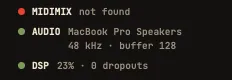
Here it reads not found: no console is plugged in. The app works anyway, with the mouse.
Then press SEND ALL on the console. The app reads where every knob and fader sits, and the screen matches your hands.
It says “custom mapping?” The console was changed with the Akai MIDImix Editor. In the editor: File ▸ New, then Send to Hardware. That brings back the factory mapping, the one DubStemMix expects.
The knobs of the MIDImix are not motorized. When a knob gets a new job (step 8), it acts only once you turn it to the value it now drives. Until then a dashed cream mark shows where to go. Nothing jumps in the middle of the tune.
2. Load the stems
Drop the folder of stems anywhere in the window. The files line up in the sidebar, under STEMS TO PLACE. Drag each one onto a strip, or right-click it to pick the strip.
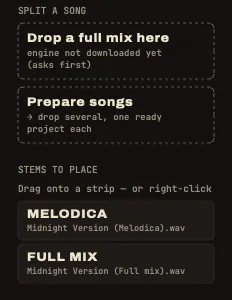
Nothing is placed for you: you patch the board. A layout that works for most reggae tunes:
| Strip | Stem |
|---|---|
| 1 | drums (kick, snare and hats can share the strip) |
| 2 | bass |
| 3 | skank: the offbeat guitar or keys |
| 4 | keys, organ |
| 5 | horns |
| 6 | vocal |
No stems? Drop the full song on Drop a full mix here, under SPLIT A SONG. Drums, bass, instruments and vocals land on strips 1 to 4. The first time, the app asks before downloading its separation engine (663 MB). Then count about the length of the song: a 5-minute tune takes around 6 minutes on an M3 Pro.
3. Play and set a balance
| Key | Does |
|---|---|
| Space | play, pause |
| Return | back to the top |
| L | loop the tune |
Faders 1 to 6 are the volumes of the strips. Start with all of them around three quarters, then bring up the vocal and the bass until it sounds like the tune.
While you learn, press L. The tune loops, so it never ends in the middle of a move.
4. Mark the riddim, then drop
Click KEEP under the drums and the bass. These two strips are now the riddim.
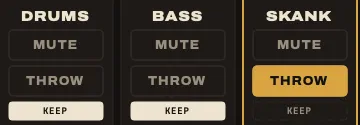
Now hold D, or the DROP button in the right column. Everything is cut except drums and bass. Release: the mix is back exactly as it was, your mutes untouched.
Try it on the beat. Hold D on the first beat of a bar, release it four or eight bars later. That alone already sounds like a version.
5. Throw the vocal into the echo
This is the dub throw. Hold REC ARM on the vocal strip of the console, or hold the THROW button of the strip with the mouse. While you hold it, the strip goes at full level into the delay, taken before the fader and the mute.
The classic move:
- Press MUTE on the vocal strip. The vocal is gone.
- Wait for a word you like.
- Hold THROW for that word only, then release.
You hear only its echo, repeats fading away. Do the same with the drums on a single snare hit.
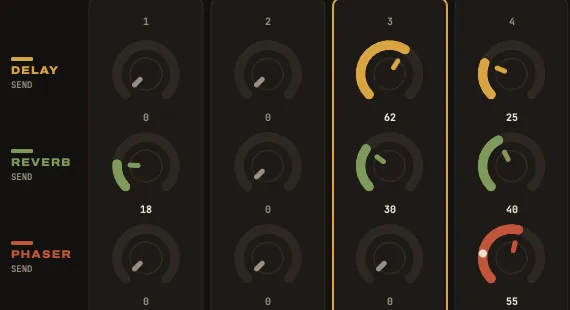
For a steady dose instead of a throw, use the knobs of the MIX page (BANK LEFT always brings you back to it). On each strip: the top knob sends to the delay, the middle one to the reverb, the bottom one to bus 3, the phaser.
6. Play the echo with strip 7
Strips 7 and 8 hold no stem: they play the effects. Strip 7 is the DELAY.
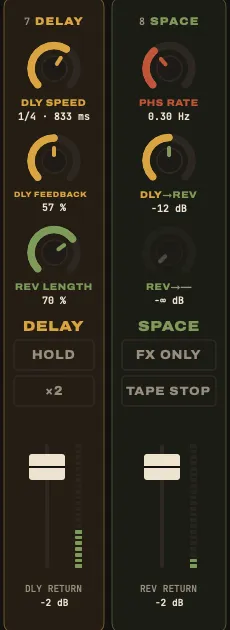
- Top knob, speed. Turn it while echoes are running: their pitch bends, like a tape slowing down.
- Middle knob, feedback. The more you turn it, the more repeats. Past three quarters they build up on their own and start to howl. Bring it back down before it gets too loud.
- Fader: the level of the echo.
- Hold MUTE on strip 7, or H: HOLD. The delay closes on itself and keeps turning. Cut everything else (hold D, or pull the faders down): the echo keeps playing alone.
- Hold REC ARM on strip 7: ×2. The delay goes twice as fast, the echoes jump an octave up.
The master limiter is on by default (LIMITER ON under the master fader): even a howling echo cannot clip the output.
Strips 5 and 6 empty? After a split they are: strip 5 is a siren, strip 6 a Syndrum. Hold MUTE on strip 5 for one bar, let go, and the delay carries it on. See the siren and the Syndrum.
7. Crash the spring
On the REVERB card at the top, open the menu under its name (it says Plate) and choose Spring.

Now press C, or CRASH in the right column: you hit the spring, King Tubby’s thunder. Send a little of the drums into the reverb (middle knob of strip 1, MIX page) to hear the spring on the riddim too.
On Plate, CRASH does nothing: there is no spring to hit.
8. Sweep the big knob
Press BANK RIGHT twice, or click MASTER in the right column. The top knob of strip 1 is now the BIG KNOB: King Tubby’s high-pass filter, in twelve steps from off to 10 kHz.
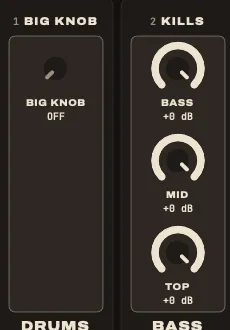
Turn it up: the bass leaves, then the drums go thin. Bring it back to OFF on the first beat of a bar: everything slams back in.
The three knobs of strip 2 are the kills: BASS, MID, TOP. Turn one down to cut that band, the way a sound system’s preamp does.
BANK LEFT takes you back to the MIX page.
9. Rewind
Press R, or REWIND in the right column: the tape brakes on the whole sound, the tune goes back to the top and starts again. The selector’s pull-up.
Lost in the echoes? Esc is PANIC: the delay, the reverb and bus 3 are emptied at once, HOLD included, and the tune plays on. On the console: BANK LEFT and BANK RIGHT together.
10. Record your version
Press ⌘ R, or REC at the top right, then play your version. Press again to stop. The recording goes into its own folder in Music/DubStemMix, with a sheet that lists the tunes played; Window ▸ Recorded Sessions turns it into an MP3.
Then ⌘ S saves the project (a .dubstem file): which stem is on which strip, the effect settings, the KEEP marks, the tempo. The positions of the faders and knobs are not saved: the console is the truth.
Cheat sheet
| Key | On screen | Does |
|---|---|---|
| Space | ▶ | play, pause |
| Return | ⏮ | back to the top |
| L | ⟲ | loop |
| D held | DROP | only the strips marked KEEP |
| H held | HOLD | the echo loops on itself |
| C | CRASH | hit the spring |
| R | REWIND | pull-up, back to the top |
| Esc | panic: empty all the effects | |
| ⌘ R | REC | record the master |
| ⇧ ⌘ R | Window ▸ Recorded Sessions | tracklists, MP3 export |
| ⌘ S | SAVE | save the project |